This page updated 19 Apr 2013
Version note: Applies to Second Site 6 & 7
My Second Site Overview article describes how to use Themes to control the "look" of your site, including colors, fonts, graphics, and more, and Formats to control the arrangement of data on the Person Pages. This article describes some techniques for customizing the appearance produced by those two tools, or even to produce what amounts to an entirely custom appearance. Other articles in my Second Site Section cover other topics about customizing your site.
|
Topics Included in this Article |
|
| Person Pages | Customizing the Person Pages |
| Customizing the Family Section of the Person Pages | |
| Customizing the styles set by a Theme | |
| How to edit the various style attributes | |
| Tools available for editing colors | |
| Advanced control of styles | |
| Controlling how the elements are arraigned on each page | |
This article first discusses ways to customize the way your genealogical data for each person is displayed on the Person Pages, to refine the choices made by selecting a Format. The later sections describe methods to customize the appearance of the overall site, to refine the choices made by selecting a Theme. The final section discusses the use of Layouts, which control how various sections of the site are arranged in your browser window.
Person Pages, as covered in my Overview article, contain the genealogical data for each person in your site. That data can be displayed in a variety of formats, again as described in that article, and the principal tool for controlling that format is by selection of a Format. However, there are several options available to customize the details of how the data is displayed by each Format.
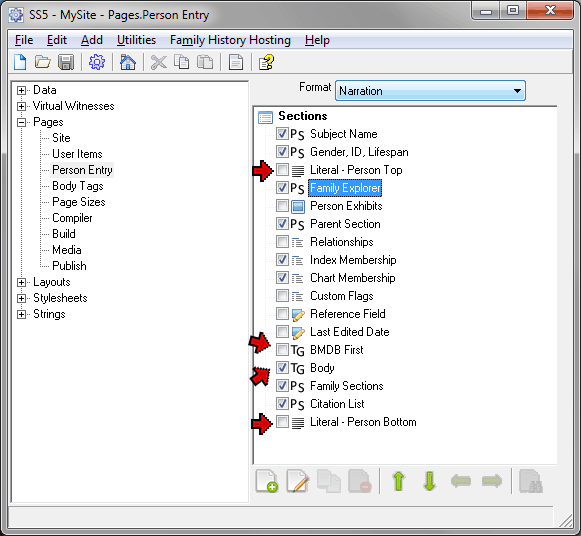
After selecting the Format, the primary tool for managing the arrangement of data in the Person Pages is the Pages > Person Entry section. The screenshot below shows the default arrangement of that section:
The right side of this screen shows a list of sections that may appear in the Person Page entry for each person in the site. There are several items of note about this list, including:
Some sections have check marks in the box at the front of the item, and others do not. Only those with check marks will appear in the site.
Sections can be moved up or down, either with the mouse or by selecting them and clicking the green up or down arrows at the bottom of the screen. Changing the order of the sections changes the sequence of the corresponding sections in the Person Pages.
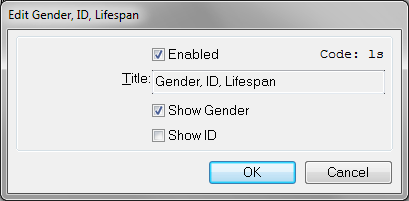
Many sections have various options than may be changed by opening that item, either by double-clicking on it or selecting it and clicking the Edit icon (the one with the pencil). For example, you can choose to show the subject's gender and/or TMG ID number in addition to his or her lifespan by opening the Gender, ID, Lifespan item, as illustrated to the right. The Family Sections item has more extensive options than most and is discussed separately in the following section.
Most sections appear only once in the list and additional copies cannot be added. They cannot be deleted, but can be made inactive by leaving the check box unchecked.
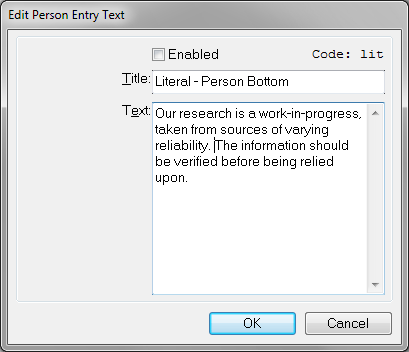
One exception to this rule is Tag Group items. Two appear by default, one labeled BMDB First, and the other Body. Checking the box for the former causes birth, marriage, death, and burial Tags to be listed first. Additional Tag Groups can be added, and provide powerful tools for customizing the presentation for specific types of data. Details are covered in my article on Tag Groups.
While the Pages > Person Entry section controls many of the aspects of the data displayed on the Person Pages, two other sections control certain aspects. The Pages > Body Tags section allows you to specify whether TMG's Sentences will be used to structure the data, or raw data will be displayed. There are also controls for displaying Tag labels and Role names in the page.
The Pages > Page Sizes section has controls for the number of people to be included on each Person Page, and has an option to have only one person visible to the reader even when more are on the page. There are also controls for the order in which people are arranged in the person pages, and an option to keep each person always on the same page so that search engine results and external links work properly when you update your site.
The Family Section of each person's entry in the Person Pages lists that person's spouses and/or partners and any children. A "Family" for purposes of this section means 1) a spouse or partner for which there is a Marriage Group Tag entered, with any children with that spouse or partner, 2) a spouse or partner with whom the subject has children but no Marriage Group Tag, or 3) children for whom the other parent is not identified. Each such group with a different spouse or partner, or children with no other parent, is a different Family and is treated independently.
To be considered for inclusion in a Family Section, a spouse, partner, or child must either be included in the site, or if excluded they must be specified as "Show if Principal to Marriage Event" for a spouse or partner or "Show Name when Child" for child in the Data > People section (see my article on Controlling Who is Included for details). When a spouse, partner, or children exist in the TMG Project but none qualifies to be considered the section according to these rules, their Family Section will be omitted.
While the selected Format controls the arrangement of the information on the page, the content, and even whether a Family Section is included when there are qualified people for it, is controlled by options in the Family Section item in the Pages > Person Entry section. To modify these options open the Family Sections item: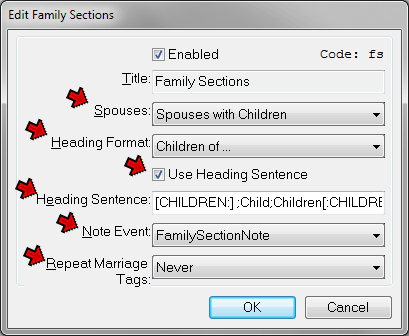
There are several significant controls for this item. Like all items in the Pages > Person Entry section, it can be disabled, either by un-checking the box in front of the item in the list of items in that section, or the box at the top of the screen as shown above. Doing so excludes the section from the Person Pages. Controls specific to this item are marked by arrows on the screenshot and described below:
Spouses: determines whether the section will appear when there are no children with that spouse. To have the section appear only when there are children, select "Spouses with Children," as above. To have the section appear when there is a spouse (defined as having a joint Tag in the Marriage Group) even with no children, select "All Spouses."
Heading Format: determines the label applied to the section. Choosing "Family N:.." results in a label like "Family:" followed by the name of the spouse, while choosing "Children of..." results in having a label like "Children of..." followed by the name of the parents. The exact format varies depending on the Format selected.
Use Heading Sentence: if checked causes the Heading Format setting, above, to be ignored, and instead the Heading Sentence, below, is used.
Heading Sentence: produces a custom heading for the section. You can construct it with the standard event Variables used in TMG to produce the names of the subject and spouse or partner in any format supported by those variables. In addition, a special code allows alternate output when there are no children, one child, or multiple children listed, in this format: [CHILDREN:]none;one;multiple[:CHILDREN]. The text you enter in the first part, before the semicolon, is output when there are no children, the middle text when there is one, and the third section when there are more than one. As an example, I am using the sentence below:
Since I have set the Spouses control to show only families with children, I've left the first segment of the [CHILDREN:]...[:CHILDREN] code empty. The other values produce "Child" or "Children" depending on whether there is one or more children listed. The balance of my sentence uses the standard TMG conditional format to produce "with an unknown spouse" if the other parent is not known, or "with" and the name of the other parent when known. Note that if the other parent is in the TMG Project but does not qualify to be named as described above, this sentence will produce "with an unknown spouse."
If the size of the Heading Sentence field is too small to comfortably enter your sentence, press the F7 key to open a larger window. This works in all text input fields in Second Site.
To be used, the Tag must be primary for the subject, and if it is to appear in the Family Section with a spouse or the other parent of children, that person must be the other Principal in the Tag. If the Tag exists for a person or couple who would not otherwise have a Family Section (for example, because there are no children or all children are excluded from the site) the Family Section will appear with the note. Thus it can be used to note that there were no children or that all children are excluded because they are living, for example.
I use this feature to comment on children who may not really have been the children of these parents, cases where I suspect I have merged two different children or when I show two children who I suspect are really the same, or when I suspect there were more children than I have record of. Since I exclude living people from my site, when some children are living and other not, I use a note like "The other children of ... and ... are still living."
By default, the note displayed appears under the Family Section Header line. However, there is an option to have the note replace the Header as well as provide the note text. This is done by constructing the Tag Sentence so it produces both the header and the note text, separated by the code \|\| – the header is placed before the code and the note after it. Here is the Sentence I use in the FamilySectionNote Tag:
The first part of this Sentence produces the header "Children with an unknown spouse:" or "Children with ... :"I use this format because I want the Family Section to always say "Children with... " instead of "Child with..." when a note appears. That format seems correct to me in every case, whether there there are multiple children listed, only one child listed and the note describes other children or possible children, or it is noting that there were no children.
The second part of the Sentence copies the contents of the Memo field, formatting the text with TMG's left indent codes. In Second Site I refine the results of those codes to use a smaller font and indent both sides. See my article on Customizing with Stylesheets for details.
If you specify that TMG's NarrativeChildren Tag be used and also use that Tag in TMG Journal reports, the code \|\| will produce undesired results in the TMG report. You may be able to make the same Tag work in both programs by hiding it from TMG but not from Second Site with these codes:
[HID:][SS:]\|\|[:SS][:HID]
Users who in prior versions of Second Site have created custom Formats to have their data appear as they prefer may find that the flexibility of the Family Section described here, together with the other options offered by the Pages > Person section, may allow them to achieve their desired results without the effort needed to maintain a custom Format. I have found that to be the case and am no longer using the two I used with prior versions.
Most users will find they can obtain a totally satisfactory site by choosing from the variety of Themes available, as discussed in the my Second Site Overview article. However, some users want a site that is exactly "my way," or they just like to fiddle with such things. Second Site offers several methods, of differing degrees of complexity, to customize the results produced by a Theme. Some of them are described in the following sections.
Before examining the techniques for customizing the results produced by Themes we should pause a moment to be sure we understand what Themes do. In Second Site, Themes control the general "look" of the site - color schemes and graphics. They do this in two ways:
They provide a set of instructions to the program for how to set a variety of properties, mainly styles, as described in the next section. In most cases the user can then modify those settings to further customize the site.
Customizing the style settings provided by Themes is probably easier if you understand the concept on which those controls are built. Second Site uses a website technology called "Cascading Style Sheets." This techo-term actually contains its own definition. The "Style Sheets" part means that they are sets of instructions, or styles, which a reader's browser uses to display the webpage. Something like this, to offer a much simplified example (which you may recognize as similar to what this page uses):
Body text is black, Times New Roman, regular size, left aligned, cream background
Page title is the same, but orange, 36 pixels, italic, centered
Subtitle is same as title, but Arial, extra large
Section headers same as body, but Arial, orange, large
The "Cascading" part means the styles are in effect in layers, and the settings in one layer "cascade" to the other layers unless a different instruction is given for that layer. In the example above, the font style and background from the body style "cascade" to the page title, but the title uses it's own size, color, alignment, and type style. When one style layer receives it's characteristics from another, it's said to "inherit" them.
Extending this notion a bit farther in Second Site, selecting a Theme establishes a wide variety of styles. The user can choose to use all those styles, or modify specific ones. When you select a Theme, most of the styles used by that Theme are set in the Stylesheet > Theme section of the User Interface. For example, the following screenshot shows the some of the Colors and Background styles set by the Mint Swirl Theme: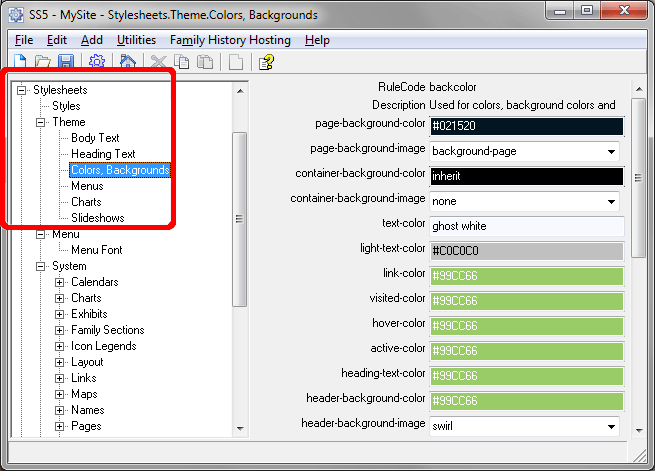
Styles set by the Theme for Body Text, Headers, Menus, Charts, and Sideshows can be seen in the other screens in the Stylesheets > Theme section. Note that if you change to a different Theme, all the values in this section are liable to be set to new values.
Styles for many specific items in your site are displayed in the Stylesheets > Menu and Stylesheets > System sections. Themes do not generally set styles in these sections directly, but some of the default values in those sections are actually references to the settings in the Theme section. So in some cases styles in these two sections are indirectly set by the Theme.
If you would like to modify some specific aspect of your site, look at the settings available, first in the Themes section, then in the Menu and System sections. You may be surprised by how simple it many be to change something. The next two sections describe how to make changes to specific styles in these sections.
If you cannot find a way to control the item you want to change in the Stylesheets sections just described, read on to the User Styles section below.
The styles are edited by entering or selecting a value in the fields of the StyleSheets section, one of which is shown in the screenshot above. Each field defines a specific attribute of one particular style. They can be though of as being one of three types:
Multiple choice – font attributes, images, and a few others have a limited set of valid values. They are set by making a choice from the drop-down box in that field.
Size – attributes related to size or width, such as margins, padding, borders, and the like, require a value be typed in. Borders are entered as numbers alone, which are interpreted as pixels. Margins (space outside the border) and padding (space inside the border) can be entered as pixels or ems (the width of an uppercase letter M in the current font). The units must be included, as 3px or 2em, for example.
Color – colors, for fonts, borders, backgrounds, and other elements, must be entered. See the next section for details and the tools available to assist in selecting them.
For each of these types you can enter the special value "Inherit" instead of entering a specific value. In that case the value is "inherited" from the parent element, which is generally the one that surrounds or precedes it.
Each of the Stylesheets sections allows the setting of styles for a single "Rule." The name of that Rule appears at the top of the screen, with the label "RuleCode." How it is used is described on the next line. In the screenshot above the Stylesheets > Theme > Colors, Backgrounds section is for the Rule "backcolor," which is used for colors and background colors.
For each Rule only a few of the most commonly changed attributes are presented in fields to be easily changed. In the Stylesheets > System section, many of the Rules include a field labeled "other." By entering an attribute and then associated values in that field you can change an attribute that is not available in a dedicated field. For example, I wanted to change the vertical alignment of the site icon, an attribute not included in the Stylesheets > System > Site Icon section. So in the Other field I entered both the parameter and the value like this: vertical-align: middle;
I have three suggestions if you need assistance in figuring out how to make a change you what to try:
Look at the Stylesheets Section of Help. Pressing F1 when the main Stylesheets section (a blank page) is open brings up a Help page which provides a good description of the various style elements and their use. Pressing F1 from other Stylesheets sections opens Help pages more specific to each section.
See my Customizing with Stylesheets article for further details, and to see some examples of styles I changed to create my own site.
Subscribe to John Cardinal's Second Site support list, where John and other users are always ready to provide help.
The official way to set colors for webpages is to enter the six-digit number representing that color. For example, #336699, in which the first two digits specify the amount of red, the next two the amount of green, and the last two the amount of blue. Of course such values mean little to most of us, so Second Site offers several tools to assist users in entering colors.
The first is the use of color names. Seconds Site recognizes 140 different colors by name. If you enter one of these names, Second Site will apply the corresponding color number when it constructs the site. The recognized names and their colors are shown in Help.
A more helpful tool, in my view, is the Color Picker. You open the Color Picker by placing the cursor in any Stylesheet field in which a color is specified, and pressing the F7 key:
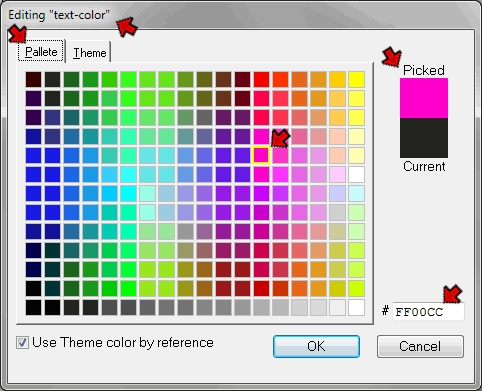
At the top of the screen the name of the attribute being edited is shown. The Color Picker opens to the Pallete tab, in which a large number of available colors are displayed. If you click one, like the bright fuchsia selected here, that color appears in the upper half of the box at the top right, under the "Picked" label. The color currently used appears in the bottom half of the same box. The color number of the selected color appears in the box at the lower right. Once you are satisfied with the color, click OK to insert that color number into the field.
If no available color color is quite to your liking, you might try modifying the color number slightly to see if you can find a more satisfactory choice. Or, if you have image editing tools like Adobe Photoshop, you may find the color tools in it are helpful in getting just the right shade. If so, you can copy the color number either directly into the field, or into the box at the lower right corner of the color picker.
The Theme tab of the Color Picker offers a helpful way to keep a consistent set of colors on your site. Open that tab and you see something like this:
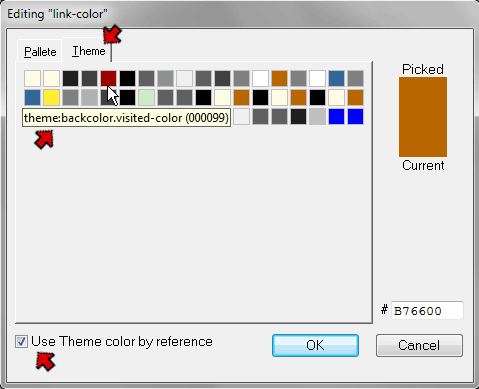
Each color on this tab has already been selected for one of the values in the Stylesheet > Theme section. If you hover your mouse cursor over a color block the style that uses that color, together with the color number of that color, are displayed, as show in the screenshot.
To use one of these colors for a different style simply select it and click the OK button. Note that by default, the "Use Theme color by reference" option is selected. With that option selected, instead of the color number being entered in the Stylesheet field, a reference to the style in which it was previously used in inserted. That means that if the referenced color is changed, those linked to it will be too.
Repeat this process for each additional custom color you are using. This avoids specifying slightly different colors when you intended them to be the same. It also provides an easy way to change those colors should you decide to do so. You only have to edit a color once in the "root" style, and all the others connected to it by the reference links are automatically changed too.
You must pick the color from the Theme tab of the Color Picker for the Reference feature to work.
There is another level of control available to the more adventurous. The Stylesheets > User section allows you to make changes to styles that are not possible in the Theme, Menu, or System sections. There are actually hundreds, or perhaps thousands, of style elements available to control the appearance of the many elements that make up your site. While a good number of the more commonly used parameters can be changed with the various sections discussed above, there are many more that a truly dedicated "customizer" might wish to use. The screens in Stylesheets > User section are designed to provide access to them.
Working with User Styles requires more knowledge than those described in the preceding section. You need to first identify which style you want to modify, and then format the instructions for the change correctly. Further information about the use of User Styles, some suggestions on how to determine which style to modify, and some examples of how I used User Styles are shown in my Customizing with User Styles article.
If you are not comfortable with working with styles, you can always obtain help from from John Cardinal's Second Site support list, where John and other users are always ready to assist.
The options in the Layouts section of the Second Site interface control how the various elements of each page will be arranged on the page the reader sees. There are four related but separate features in the Layouts section, which are marked in the screenshot below with arrows:
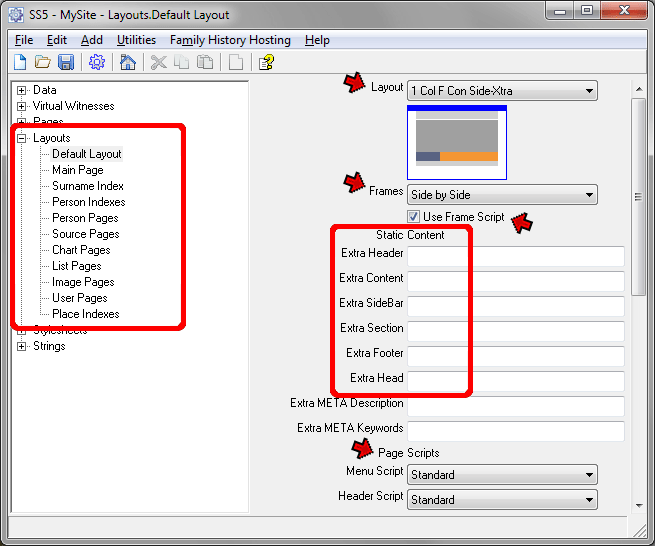
This screen is for the "Default Layout" – the controls here affect the entire site unless a different setting is used on one of the screens for a specific type of page. If you look at the screens for each of the types of pages you see similar controls, with the differences noted below. The four functions on the Layout screens are described below:
Header |
Content |
Sidebar |
Extra |
Footer |
By default Second Site makes reasonable choices for this function, and most users will not have to concern themselves with selecting alternatives. The adventuresome, however, may wish to review this subject in Help and experiment. If you select a different Layout a small thumbnail outlines the resulting layout of each page.
Note that there is a section for "Default Layout" and then sections for each of the different types of pages in your site. As part of the Cascading Style concept discussed above, the layout selected as the Default is inherited by each of the page types unless something different is specified for the individual type of page.
If you check the "Use Frame Script" box as shown above, Second Site includes in your site a special script that automatically moves the page a reader finds by a search engine into its proper side-by-side arrangement. There are some issues with this feature (see Help for this screen) but I think they are out-weighed by the advantages, and recommend that those who prefer a Framed layout use it.
Static Content – Allows you to add content that doesn't change, usually text, to each of the five parts of the page mentioned above in the Layout discussion. For example, if you want to add a copyright notice at the bottom of each page, you might enter that text in the "Extra Footer" section ("extra" means in addition to anything Second Site itself would place there, such as the compiler information visible in the sample pages at the top of this article). Content added on the Default Layout screen appears on all types of pages unless you check the corresponding "override" box on the screen for a specific type of page, in which case you can enter content that will appear only on that type of page.
This describes some methods by which one can further customize a website created with Second Site to suit his or her own preferences. If theses techniques seem confusing, or you are just not interested in mastering them, ignore them and use the techniques described in my Second Site Overview article. Leave the more advanced techniques to those who find them entertaining.
| ReigelRidge Home | Terry's Tips Home | Contact Terry |
Copyright 2000- by Terry Reigel