This page updated 6 Mar 2011
Version note: Applies to TMG 8 & 9
TMG uses a system of Source Elements and Output Templates to create a very powerful and flexible tool for recording and printing information about your sources. This article explores how those tools work, and some ways to customize them to fit your needs.
Topics Included in this Article |
|
| The building blocks of Source definitions | |
| Specifying the output | |
| Knowing where to work with the Templates | |
| Knowing how to modify the Templates | |
| Working with individual Sources | |
| Sequencing the Elements on the Source Definition Screen | |
First, we need to understand what a Source Element is. Basically, it is a field (place) where we enter a bit of information about a source. It might contain the name of the author of the source, or it's title. I might contain the name of the subject of a birth certificate, or the date of publication of a book.
Most Source Elements appear on the General tab of the Source Definition Screen, including all those mentioned above. But a few are elsewhere:
One Source Element, [TITLE], is a special case. It is used as part of the output for some, but not all, Source Types. But it also is displayed to identify the Source in the expanded version of the Master Source List. So it is helpful to enter something into this element even when it is not actually used in the output.
A Source's Output Template is a set of instructions to the program for arranging the data you enter in Source Elements into footnotes, endnotes, or a bibliography. As an example, let's look at the default full footnote template for Book (Authored):
[AUTHOR], [ITAL:][TITLE][:ITAL] ([PUBLISHER ADDRESS]: [PUBLISHER], [PUBLISH DATE])<, [CD]><. Hereinafter cited as [ITAL:][SHORT TITLE][:ITAL]>.
The parts marked in red are the actual Source Elements. Everything else is 1) punctuation or text that is to be output as entered, 2) "printer codes" that that tell the program how to style the text, for example with Italics, or 3) "conditional brackets" that tell the program to ignore everything that is enclosed in them if the included Source Element is empty.
Now let's "decode" it and see what it tells the program to do. It says to insert the author's name from the [AUTHOR] Source Element, then add a coma. Next, insert in Italics the title from the [TITLE] Source Element. Next, place in parentheses the publisher's address, a colon, the name of the publisher, a comma, and the publication date, from their respective Source Elements. Next, if there is a citation detail, add a comma, and then insert the detail from the [CD] Source Element. Finally, if there is an entry in the [SHORT TITLE] Source Element, insert a period and the phase "Hereinafter cited as" and then place the short title in Italics.
To review, the terms in square brackets, like [AUTHOR], are the names of Source Elements. The terms in square brackets that include colons, like [ITAL:], are codes for special fonts. The angle brackets are called Conditional Brackets, and tell the program to ignore the material between them if the included Source Element is empty. If the Source Element is empty and the conditional brackets are not used, the output will include a term like "an unknown person" where the data from the Source Element is supposed to be inserted.
Each Source Definition actually has three Output Templates:
The footnote templates are used for either footnotes or endnotes, depending on which you specify in the report definition.
TMG ships with a substantial set of Source Types, each with its own set of Output Templates installed. You can use these Templates just as they are provided to satisfactorily record many sources you encounter. However, you are likely to find some sources that just don't fit well in the default Templates. Or, you may just prefer that your citations appear somewhat differently than provided by the default Templates. TMG provides for three levels of customization of its Output Templates:
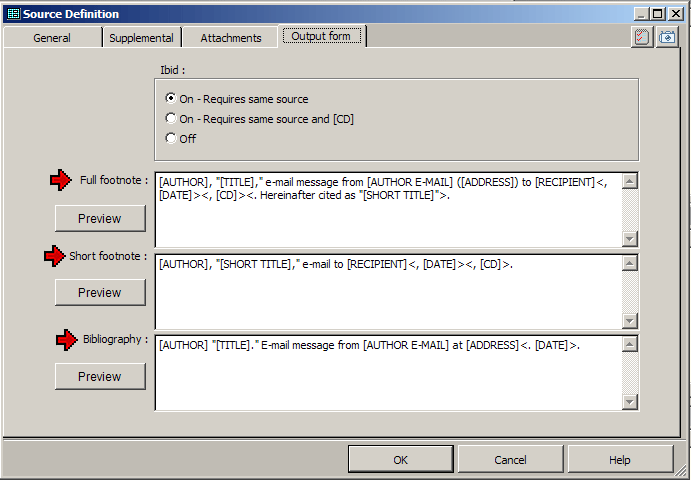
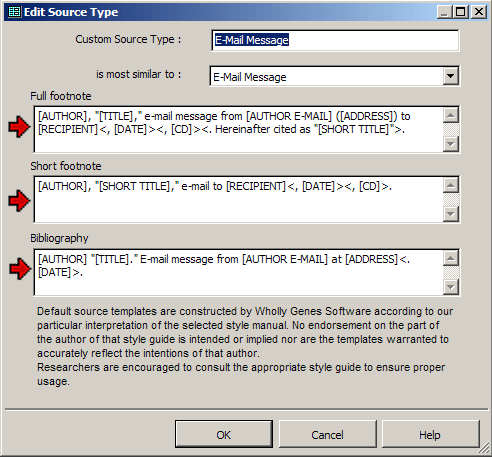
Create a Custom Source Type - This creates a new Source Type, with it's own default Output Templates. You can then change existing Sources to this new Source Type, or use it when creating new Sources. See my article on Creating Custom Source Types for details.
No matter whether you are editing an Output Template for an individual source, or a Source Type, you simply type in the changes you want in any or all of the three Output Templates:
The tricky part is getting everything in its proper place. The Preview function is a big help – make your desired changes, then click Preview to check your results, and if necessary, go back and edit the Template again. Note that the [CD], [CM] and [CREF] elements are not actually entered until you cite the source, so they will appear in the preview just as they do in the Templates, rather than with values being displayed.
Using Preview is simple if you are editing an individual Source Definition, as the Preview button is right there as you edit the Template. But there is a trick that allows you to also use the Preview function when editing Templates in Source Types as well. Instead of accessing the Source Types screen from the menu, access it from the Source Definition of a Source that will use the Source Type you are editing. To do so, click the Source Types button on that screen. When you think you have finished your editing of the templates, click OK to close the Edit Source Type screen, then click Cancel to close the Source Types screen, which leaves you with the Source Definition Screen of the Source you started with. You can now go to the Output Forms tab of that screen to use the Preview feature to test your edits. If you find you need to make additional changes to the templates, click the Source Types button on the General tab to get back to the Source Type Templates for further editing. (This is actually much easier to do than to describe.)
If you plan to work much with customizing sources, I suggest that you find the list of Source Element Groups in TMG Help (search for "source element groups") and copy/paste it to a word processor and print it out. I use my copy as a bookmark in my copy of Evidence! There is also a list of all the standard Elements, the Groups they are in, and the screens on which they appear on my Source Elements page.
If none of the existing Source Elements is adequately descriptive, you can create custom Source Elements, which may be useful to provide more meaningful Source Element labels for your Source Definitions. See my article on Working with Source Elements and Groups for details.
There are three ways you might change the Source Elements that are used by an existing Source Definition. To, add or delete a Source Element, or change from one Element to another in the same Group, you can:
When you make such changes, the Source Elements that appear on the General and Supplemental tabs will change as follows:
Note that Elements enclosed in Conditional Brackets in the Output templates, and thus optional, will also have the Conditional Brackets around the Label on the General tab.
It is tempting to click on the Source Element label buttons on the General tab of the Source definition screen to add Source Elements. It is not a practice I recommend. Doing so does not add the Element to the Output Template, so any data you enter is never included in output unless you then modify the Output Templates to include it. In fact, if you fail to enter any data in the added element, it will disappear when you close the Source Definition screen. It is more reliable to add Elements by typing their names into the appropriate Output Template(s), which will automatically cause them to appear on the General tab.
Users have occasionally wished that they could have the Source Elements appear on the General tab of the Source Definition screen in some logical order. Unfortunately, there is no simple way to do that. There is no direct control of the sequence in which the elements appear, but instead they appear in a fixed order based on hidden numbers associated with the Groups the Source Element are assigned to.
In theory, then, one can control the order of the Elements by creating custom Elements and selecting Groups for them such that they appear in the desired order. However this effort is complicated by the fact that some Groups, which fall together in the middle of an ordered list of the Groups, have special characteristics intended to be used for entering names. These "name" Groups allow you to enter an ID number if the name you want to enter is someone entered in your Data Set, and thus do not work well if you use them for data which starts with a number. In addition, they are designed to re-order given and surnames in the three types of notes – Full Footnote, Short Footnote, and Bibliography. As a result, if you use them to enter data that contains commas or semicolons your output will be jumbled, and if you use other Groups for names, they may not be output as expected.
For those who wish to attempt to control the order of the Elements despite these obstacles, I suggest seeing Glenn Gilbert's article, which lists all the Groups in the order in which they appear. For more information about creating custom Source Elements, see my article on Working
with Source Elements and Groups.
| ReigelRidge Home | Terry's Tips Home | Contact Terry |
Copyright 2000- by Terry Reigel